AI Path — Shared Services Workshop
- 2 hours, hands-on, on your own work.
- Have Copilot open, signed in with your work account. Everything today runs in it.
Welcome
- Today is hands-on — you will be doing, not only watching.
- Were you at the intro webinar? It covered how it thinks, how to ask, where it goes wrong. It is online with all the prompts if you want it. If you were not there, you have not missed anything you need today.
- Please ask. Out loud, or in the chat, at any point. Two minutes beats following along unsure.
Ask early, ask often. That is what today is for.
A smaller group, two hours
- The AI adapts to you. Not you to it. Bend everything today to how you actually work.
- You are not all starting from the same place. Expected. Take each exercise as far as it is useful to you, and stop there.
How this deck works
- Press Say it simpler or Go further when you want more on a term.
- Every prompt has a copy button. You never retype anything.
- Download as PDF is at the top right if you want a snapshot. We update the site during the session, so the PDF is a snapshot.
- There is more here than two hours can cover, and that is on purpose. We finish the core together. Afterwards, go through what interests you.
Use the live site, not an old printout.
Your route through today
Today's map
Click a chapter to jump there. Choose the optional IT section when it fits the room.
Click a chapter to jump there. Each chapter's first page has a way back to this map.
Your screen may not look exactly like mine
- This is my Copilot. Yours may have different buttons, or ones I do not have.
- Microsoft ships to different people at different times. Not you doing it wrong.
- Tell me when you cannot follow along. I would rather stop than leave you stuck.
- You will hear me talk to the AI instead of typing.
If you cannot find it, say so. That is information, not a problem.
Built from interviews, ready to adapt
- We have adapted this training from interviews, and from three sources we were sent: a note from Contract Management, a note from the Events team, and a list of everyday Back Office use cases. Give me more hints during the training and we can adapt it.
What you leave with
- Agents for your work. Build, test and improve an agent, with examples to take away.
- Skills to reuse. See how to add a skill, and take ready-made skills home.
- Governance and maintenance ideas. Know who owns an agent, how to share responsibility and when to review it.
- Choose your route. We cover the core together; explore the optional sections as time and interests allow.
You leave with agents, skills and ideas for keeping them useful.
Microsoft Learn, retrieved 29 Sep 2026Build agents with Agent Builder
Before we start · who does what
How work is changing
You hold both ends. AI does the reading, comparing and drafting in between.
You plan and you control. The agent carries the middle.
Every chat · make Copilot yours first
Make Copilot yours, first
- Custom instructions are a few lines you save once. Copilot reads them before every chat.
- The next three slides are one path. Make Copilot yours, follow the steps, then paste the block and save. Requests, mail you send, sheets. After that, we build an agent that uses the same idea for one job.
If you only add one thing, add the accuracy lines.
Every chat · custom instructions
Make Copilot yours
- It does not know your work. Requests that arrive, information you send out, sheets: it answers with the average of everyone. Tell it once, here.
- Before you start: pick the thinking option in the model menu, not the quick one. Leave Work IQ as it is today. The slide on work sign-in shows what it does.
Open it now: Settings and more → Chat settings → Personalization → Custom instructions → Edit instructions. The text is on the slide after the steps.
Tell it what matters to you. It stops guessing on every answer.
Microsoft, verified 31 Aug 2026Customize how Microsoft 365 Copilot responds to you·Personalize what Microsoft 365 Copilot remembers
Steps · custom instructions
Steps: make Copilot yours
- Read the steps first. Then we do them together.
Five steps. Let us do it together.
Read it, then paste it in
Work account and invented data today. Check policy for real data. Paste, edit, save.
Context: I work in back office, contract management or IT. Colleagues send me requests, and I send answers and documents back. Whatever I bring you, read it thoroughly, act as a thought partner, and suggest alternatives. Some of the words you will meet in my work are request, agreement, clause, email, thread, travel, sheet.
Style: Write like a person, never robotic. Plain, warm, short sentences. Answer in the language I write in. Go straight to the answer. Under a page unless I ask for more.
Accuracy: If my premise looks wrong, say so before you start. If you do not have what you need, say so instead of guessing. Never invent a number, a date, a price or a name. Verify anything current, and give me the source.
Guardrails: Follow our company AI policy. No real contracts, client data or personal data. You check and draft. I decide, and I send.
Coach me: After you answer, add a short section called Prompt feedback. In one or two sentences, say what helped in my request and what was missing: who it is for, what I want done, what to use, what format. Then give me a better version to copy. If my request was already clear, say so and do not rewrite it.
In another team? The underlined words are yours to change.
Before the question
Agents and skills: what becomes possible
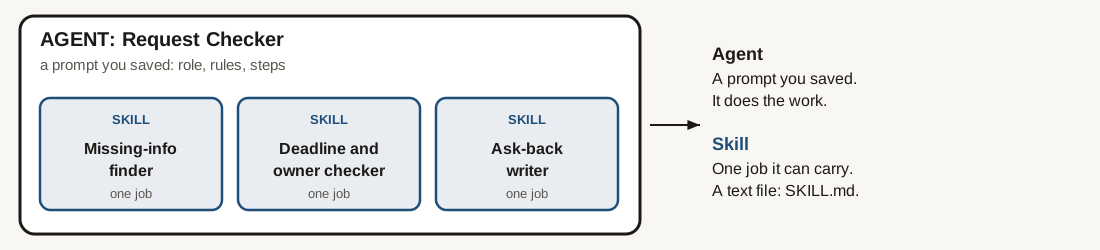
- An agent is a prompt you saved, with its own files. You pick it from a list instead of retyping it.
- A skill is one reusable job an agent can carry. It fires by name, or by wording that matches its description.
- What becomes possible: a few agents for your week, and skills you download, improve and change until they fit your work.
- Next, one question: what have you built, and have you added skills?
An agent is a prompt you saved, with its own files. A skill is one reusable job it can carry.
Who has built an agent, and for what?
Four lines in the chat: what have you built, and what does it do? (Not yet? Which task would you give one?) · Have you added skills to it, and which? · Where would an agent save you the most time? · On which step?
- Not built one yet? Stay with me. You watch me build one first, slowly.
Built an agent or added skills? I show you how to make them better. Not yet? Watch me build one, then build yours.
Earlier sessions · names only
Agents other groups have built
Named in earlier sessions. Not a full count. I do not have their instructions.
- Sales negotiator: argues with an offer first
- Request Flow AI: screens a request, gives a summary
- Translator PL to EN: translates the way you want
- CV Fit Evaluator: ranks CVs against a request
- Offer agent: method and layout for offers
- Prospecting agent: finds prospects; shared by a team
- Legal assistant: works from framework agreements
- Leadership coach: a coaching-style agent
- Regulation Q&A: answers, with references
- Contract reader: flags points to raise
- Opportunity hunter: being fine-tuned
Many have built one. Each started with one job.
Chat · one line each
Your work, in your words
One line in the chat, your own words: The last request you had to send back because something was missing.
One more line: Something your team does again and again, that is slow to read, or expensive to get wrong.
- Back Office: emails, calendars, documents, hotels and flights, agreements, Excel
- Contract Management: key clauses in agreements, email threads, tracking in Excel
- Events: text and tone, Excel by hand
This column is yours. Back Office and Contract Management: what we have is a list and a note, not you. It is filled in the room and stays in the room.
I keep your words. I do not tidy them.
Before we build · the everyday version
You keep pasting the same prompt
- Think of the prompt you write or paste every week. Same words, same files, every time.
- That repeat is the signal. Soon you will see the picture: same prompt again → save as an agent → test → if wrong, update the instructions.
- Watch the next slide with that one in mind. I run an ordinary prompt on a request that has just landed.
Remember the prompt you paste every week. That is the one we save.
An ordinary prompt · what you do today
An ordinary prompt, on a request
Watch my screen. I run it on this request. The request (invented test case) Watch for: does it name what is missing, or does it fill the gaps itself? If it writes the reply, or starts reviewing an agreement it has not seen, that is the thing to catch.
The request. Department 1 asks if a new supplier agreement is ok. The mail disagrees with itself on date, price and who signs. The agreement is not in the file.
Task: Read the request below and tell me what I need before I can start.
Steps:
1. Say what is asked, in two lines.
2. List what is missing or unclear before a team can start.
3. Write the questions I should send back.
Output: the two lines, the list, the questions. Maximum half a page.
If unsure: If you do not have what you need, say so instead of guessing.
Guardrails: Do not write the reply. Do not start the work. I decide what to send.
The request: Paste the downloaded request under this line. Use that file only.
- Useful today. Next week you would paste it again.
It can read a request for you. Ask it to.
An agent is a prompt you saved, with its own files
- You already have the idea. Any prompt you keep re-pasting is an agent you have not saved yet.
- What makes it live is what you give it to read. A new file improves the agent without you rewriting the agent.
- ⚠️ It is not actually a colleague. No judgement, no accountability. An agent makes it repeatable. It does not make it responsible.
- Next: the picture of when to save a prompt as an agent, and the update loop when it is wrong — then I build the one you just saw.
Same prompt, every time, without writing it by hand or pasting it from a document.
Discuss this · where agents start · what you do when they are wrong
When an agent — and the update loop
- Top lane — when. The prompt you paste every week is already an agent you have not saved. Same job three times → create it.
- Bottom lane — how you improve. Create → test on a case you know → if it is wrong, update the instructions → run the same test again and compare.
- Discuss for 30 seconds: name one prompt you already repeat. That is the candidate. Mistakes later mean fix the text, not throw the agent away.
Repeat jobs become agents. Wrong answers update the instructions. Then you test again.
Steps · build an agent
Steps: build an agent
- Watch me do them once. Then you do them. No New agent button? Pair up: one screen, two people.
- The first row of the paste block is the name. Before you create, look at the name field on your screen: if it does not show that name, type it there.
The steps are on the card.
Stuck while you build · try these in this order
If it is not on your screen
- Not on your screen? It may not be you. Say what you see, refresh, log out and in, check the Work IQ switch.
- Still nothing, or “no enabled action for agent creation”? Ask IT, and pair up: one screen, two people.
Try these, then pair up.
A · Input · our hypothesis, test it
Agent: Request Checker
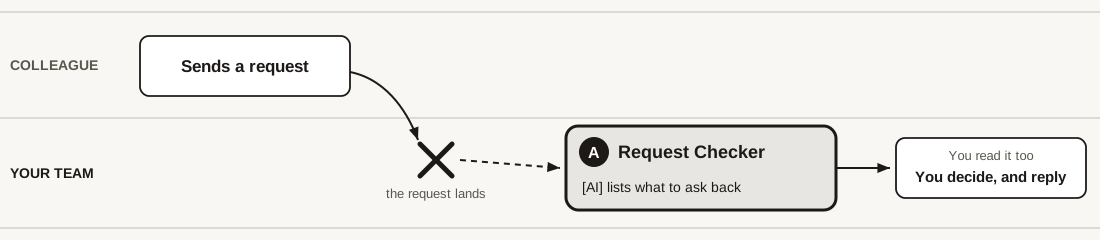
Purpose: checks a request when it lands, and lists what to ask back.
Skills to download and change (skills part, after the agents): Missing-Info Finder · Deadline and Owner Checker · Ask-Back Writer
It checks and asks. You decide.
A · With me · build the agent
Watch me build it: Request Checker
I build, you watch. Then build yours the same way, step by step. New agent → Describe → paste. Answer its questions, then Create. Put its name in the chat.
Name: Request Checker
Task: Turn the agent below into an agent. I will try it on one incoming email. Build it general enough for any request.
If unsure: Ask me first if anything is unclear.
Before saving: Show me the agent before I save it.
The agent:
Role: I work in a service team. You check requests that arrive, before I start. I decide what happens next.
Use only: the request I paste or attach. Nothing else.
Tone: plain, neutral and polite.
Steps:
1. Say what is asked, in two lines, in the requester's words.
2. Check the request against what a team needs to start: what it is for · who the parties are · the date, and how fixed it is · how many people or how much · the rate or price, and who approves it · the country or company · anything special, like a deadline, a template or a clause the client asked for · who to ask. For each one write clear, vague or missing, and quote the exact words or numbers you found. Soft words ("soon", "some time", "around") and ranges are vague. If two statements pull against each other, mark both vague.
3. List anything that contradicts itself, quoting both sides.
4. Write the questions to send back, short and polite, one for each gap, the most important first.
Output: the two lines, the check as a small table, the contradictions, the questions. Maximum one page.
If unsure: If you do not have what you need, say so instead of guessing. If the request looks like it is not for my team, say so before you start. Never fill a gap with your own assumption. If the request is fine as it is, say so instead of inventing gaps.
Final check: Before you answer, confirm every "clear" and every "vague" quotes a line from the request, and every "missing" says what is missing.
Guardrails: Do not reply to the requester and do not start the work. No real names or personal data. Check and ask only. I decide.
- The list in step 2 is a guess. Replace it with what your team really needs.
Read the request yourself as well. The agent is a second pair of eyes, not a replacement for yours.
A · Test on data · a made-up email
Try it on the email
In Try it, paste the email and send. It is made up. Requests can hold personal data too: here, made-up or anonymised only. The incoming email (invented test case)
From: a colleague, Department 1
To: the contract team
Subject: FW: A contract for a new client project
"Hi, we need a contract in place for a new client project. Small and simple, but it covers several of our people, probably around 5 to 10. Could you look at it? We need it signed soon, so as soon as possible please. Rates: still being agreed with the client. Denmark, or maybe Poland. Thanks!"
---------- Forwarded message ----------
From: Head of Delivery
"Please make sure the signed contract is back by 3 April."
- Done when your agent has answered on the email. Stuck? Type STUCK and the step number in the chat.
Check that the questions ask for what is really missing. Not everything.
Editing · say it, do not rebuild it
Editing: just tell it what to change
Keep the first answer. Your agent → Edit → Describe: paste the change. Run the same email again and compare: look at the first line and the order.
Add to the agent: Start every answer with one line: "Enough to start" or "Not enough yet". Then give only the three gaps that matter most, most important first, each with the exact words or numbers that show it. Keep everything else as it is.
- Correct the instructions, not the chat. The chat forgets. Add the change yourself: asking the builder to rewrite everything may change everything.
The proof is the second run on the same email. Not the assistant's opinion of itself.
Before you build · pick the right work
When is it worth it, and when is it not?
- Worth it when you do it again and again · it is long and slow to read · it is expensive to get wrong. One of those is enough.
- Not worth it: a two-line reply you write faster yourself · the decision itself: accepting a request, signing an agreement, the booking · a total you have not checked.
- Not sure it will work well? Say so first. The honest answer is sometimes: do it by hand.
- For work tasks: use the Copilot you have through work. It is the one set up for your work material.
Hand it the reading, checking and first drafts. Keep the choice and the voice.
Deloitte, 2025 Global Business Services Survey, May 2025Deloitte 2025 Global Business Services (GBS) Survey
Your work · where each agent sits
Where agents could help
- This is where agents can sit on the work. Next: find the gap in your own week.
- A request comes in. Something goes out. Before you ask for something yourself, you check it. One agent for each.
- One short note and one hypothesis, not your process and not what other teams already do. Where yours runs differently, say so. Back Office is not drawn: we have no note.
The agents live on your work, not in a menu.
Your work · where the agents come from
Now look for the gaps
You built one and edited it. Now find where the next one goes: follow one request through your week. Every place you stop and think "not again" is a gap, and a gap is where an agent goes.
In the chat: one gap from your own week, and is it worth it?
Find the gap first. The agent is what fills it, and you still sign.
Where agents sit · click one to read it and build it
Agent ideas: between, in, out
Gatekeeper: the request holds what you need before you start
Internal event pack: programme and venue questions
Emails land: what each is, who, what is missing
An agreement lands: key clauses, and what is missing
Options to compare, before you book
A sheet lands: calculation and data-quality errors
Your voice, every fact kept
Is this enough to send? The Request Checker, turned round
Next, we improve the agent you built. The rest you build on the pages that follow, or afterwards.
Pick the gap you found. Click its agent.
Built one, or done early? · click one
Improve an agent
Two ways to make any agent better. Only the first is for everyone. Click one.
Improving how you ask is part of improve. Turn on the Coach me block on the custom instructions slide, and Copilot tells you what your request was missing.
Start with the first. The others are for when an answer disappoints.
Steps · improve · sources
Steps: what is it working from?
- Read the steps first. Then do them.
Four steps, inside the agent you already built.
Improve · what is it working from
What is it actually working from?
Open the Request Checker (or any agent you use). Paste this into it, run it on the same email.
Task: List every source, file and instruction you are working from for this task.
If unsure: For anything you do not have direct access to, say so plainly rather than filling the gap.
Steps:
1. List every source you used.
2. List every file, folder or site you could not read, and why.
3. Say which figures or facts you worked out yourself and which you took from a source.
Output: the lists, then what you would need to see to answer this properly instead of generally.
- What comes back tells you where to point it next. A missing source beats a better prompt.
- A fluent answer is not always a checked answer.
A confident answer and a checked answer look identical until you ask.
After the core · go where your work is
Pick what interests you
Sort, draft, fix tone.
Find a time, write the agenda.
Draft and rewrite in Word.
Compare, then book yourself.
Key clauses and gaps.
Check a sheet. Find errors with evidence.
Owner updates a shared file.
· · ·
Start with the job you do most. The by-hand pages link back here.
Between · our hypothesis, test it · where it sits, and what it does
Agent: Flip
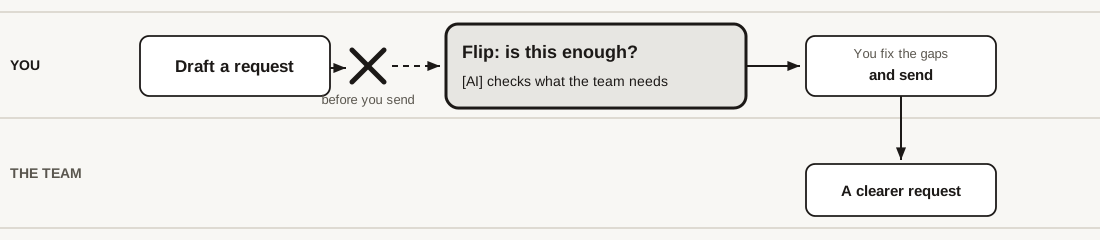
Purpose: checks a request you are about to send, against what the team needs.
Same checks as the Request Checker. Asked before you send.
Steps · flip it, or build your own
Steps: flip it, or build your own
- Copy the instructions from your agent: Agents → your agent → Edit → Configure → Instructions. Not from the build page: that block starts with “Turn the agent below into an agent” and would nest two build commands. The rest are the same steps as before.
- The first row of the paste block is the name. Before you create, look at the name field on your screen: if it does not show that name, type it there.
Copy first, from the agent itself. Your first agent stays as it is.
Same agent · from the other side · our hypothesis, test it
Flip it: is this enough to send?
Describe → paste this, then the instructions you copied from Configure. In Try it, paste the draft (made up: no real personal data) and ask: is this enough? The team's list is a guess: use what they really ask you back. The draft request (invented test case)
Name: Flip
Task: Read the agent instructions below and flip them. The new agent checks a request I am about to send to a team, against what that team needs to start.
The instructions: [paste the Request Checker instructions you copied here]
Your steps:
1. Interview me one question at a time: which team I send to, and what they usually ask me back. Wait for each answer.
2. Turn every check from "what did the requester leave out" into "what have I left out".
3. Show me in one sentence what you will write, and wait for my yes.
4. Write the full new agent, with the same labels.
If unsure: If the original is a bad starting point for what I send, say so before you start.
Guardrails: Keep the guardrail line word for word. The new agent checks and asks. It never sends anything. At most 8,000 characters.
Same checks. Asked before you send, not after it lands.
E · Back Office · our hypothesis, test it · default example · where it sits, and what it does
Agent: Tone Editor
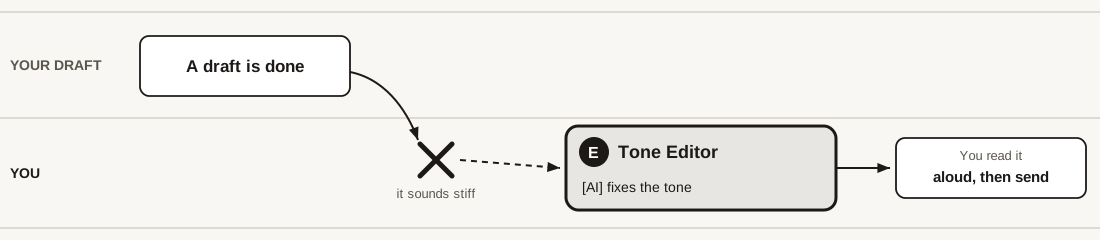
Purpose: makes a draft you wrote sound like you.
Skills to download and change (skills part, after the agents): Polish the Register · Shorten, Keep the Facts · Firm but Polite
It fixes the tone. You keep the facts and you send.
E · An email that sounds like a form letter
Build it: Tone Editor
Describe → paste. In Try it, paste the draft, then the sample of how you sound.
The draft email and the voice sample (invented test case)
Name: Tone Editor
Role: You edit a draft I wrote. You never write it for me. I decide, and I send.
Use only: my draft, and the sample of how I sound if I attach one.
Tone: like the sample. If there is none, plain and warm.
Steps:
1. Quote the three places that sound most robotic, and say why in a few words.
2. Rewrite the draft in my voice. Keep every fact: dates, places, numbers and names.
3. Then give one version a little more formal and one a little less.
Output: the three places, then the three versions, each labelled.
If unsure: If the draft has a gap, ask me instead of filling it. If my premise looks wrong, say so before you start.
Final check: Before you answer, confirm no fact was added and none was dropped.
Guardrails: Do not add claims, prices or promises. No real names or lists of people. I decide, and I send.
Check that no fact moved. The tone should.
F · Contract Management · default example · where it sits, and what it does
Agent: Contract Reviewer
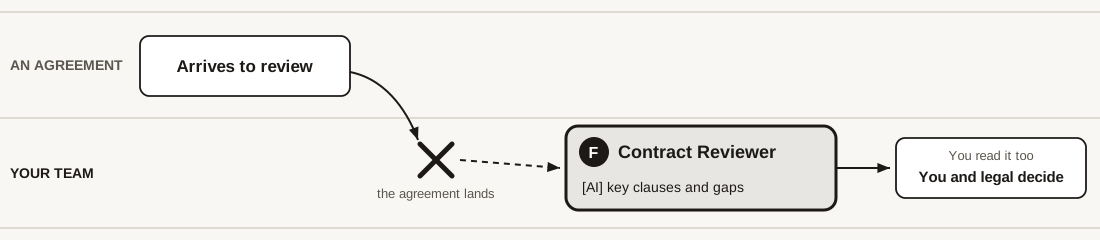
Purpose: reads one agreement, pulls out the key clauses and what is missing.
It reads and asks. You and legal decide.
It finds the questions. You and legal decide.
F · The agreement arrives
Build it: Contract Reviewer
Describe → paste. In Try it, paste the agreement text. Contracts go only in a tool approved for that data: invented agreements only here.
The agreement excerpt (invented test case)
Name: Contract Reviewer
Role: I work in contract management. You read one agreement before I review it with legal. You never approve a contract.
Use only: the attached agreement. Nothing else.
Tone: factual and calm.
Steps:
1. List the clauses that carry risk for us, with clause numbers and the exact words.
2. Put liability, termination and payment terms in a small table: clause · what it says · risk low, medium or high.
3. List what the agreement does not say but a contract like this usually covers.
4. Write three questions to put to legal.
Output: the risk list, the table, the missing list, the questions. Maximum one page.
If unsure: If a clause is unclear or needs legal review, say so instead of guessing. If the text is not an agreement, say so before you start.
Final check: Before you answer, confirm every point has a clause number from the file.
Guardrails: Invented agreements only in this room. Contracts go only in a tool approved for that data. Not legal advice. I decide, and legal signs off.
Before you rely on a point, find the clause in the file yourself.
Your own job · a trainer method, not a Microsoft workflow
No template fits? Let Copilot interview you
New chat. Paste, fill in your task, answer its three questions, read the draft before you save.
Name: [a short name for your agent]
Task: I want an agent for [my task]. Ask me the three most important questions first, one at a time. Then draft the agent under that name and show it to me before I save it.
If unsure: If my task is a bad fit for an agent, say so instead of drafting one.
Guardrails: No real names or personal data. I decide, and I send.
- Keep it to three questions. Then test the agent on three made-up lines of input. That is your test case.
No template? Let it interview you, then test it on something made up.
Steps · pick one · on your own
Steps: pick one
- Next slide: click your agent. Every build page has a link back.
Every agent has a page that says what it does, then a page to build it.
If there is time · click one
Pick your agent
Click the agent for your gap. Halfway, type its letter in the chat (C, D, H or your own).
Missed one?
Build the one that fills your gap. The rest wait on the site.
C · Back Office · our hypothesis, test it · optional · where it sits, and what it does
Agent: Travel & Logistics Researcher
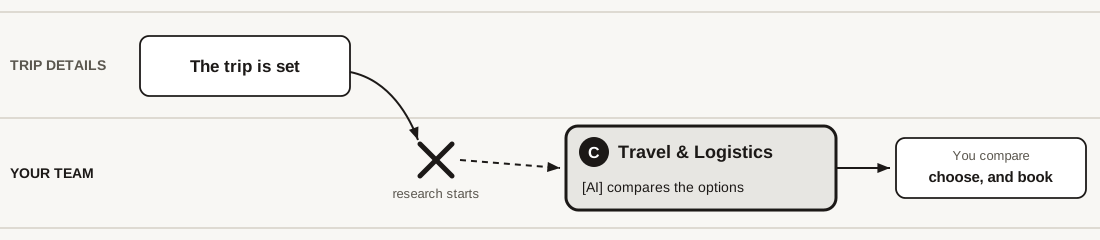
Purpose: compares hotel, meeting room and travel options against your criteria.
You compare, choose and book. It never books.
Skills to download and change (skills part, after the agents): Options Table · Cost and Date Cross-Check · Risk and Cancellation Lines
It shortlists. You choose, and you book.
C · A place, dates, a headcount
Build it: Travel & Logistics Researcher
Describe → paste. In Try it, paste the trip details. Names of travellers are personal data: only in a tool approved for that data. Here: made-up.
The trip details (invented test case)
Name: Travel & Logistics Researcher
Role: I arrange a business trip and a team meeting. You research hotel, meeting room and travel options from the trip details I attach. You suggest and compare. I choose, and I book.
Use only: the attached trip details, and public information you can find. Label every fact: from the details · public, check it · not known.
Tone: plain and precise.
Steps:
1. Say the trip back in three lines, and list what is missing from the details.
2. Suggest hotel and meeting-room options that fit the place and my criteria. Compare them in a table: capacity · step-free access · rough cost band · getting there · what to check.
3. List flight or train options from each arrival city, with what to check before booking.
4. Write five questions to put to each hotel.
Output: the missing list, the table, the travel options, the questions. Maximum one page.
If unsure: If you do not have what you need, say so instead of guessing. If anything I gave you conflicts with something else I gave you, say so before you start. Never state a price, an opening time or availability as fact.
Final check: Before you answer, confirm every row of the table is labelled: from the details, public, or not known.
Guardrails: Suggest and compare only. Do not book, pay or write to a hotel or an airline. No real names of travellers or personal data. I decide.
Check that it caught everything that matters, not only the easy parts.
D · Input · Back Office · our hypothesis, test it
Agent: Inbox Triage Assistant
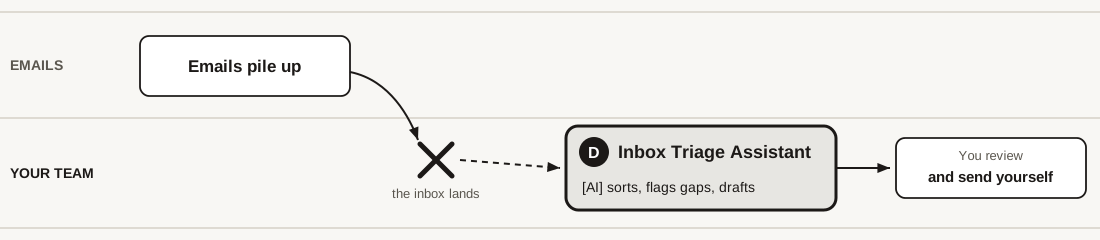
Purpose: sorts a small inbox and drafts a first reply for each email. It never sends.
It sorts and drafts. You read, you decide, you send.
D · Six emails arrive
Build it: Inbox Triage Assistant
Describe → paste. First row = the name: check the name field. Then paste all six emails in Try it. Made-up here. The six emails (invented test case)
Name: Inbox Triage Assistant
Task: Turn the agent below into an agent. I will try it on a small inbox. Build it general enough for any set of emails.
If unsure: Ask me first if anything is unclear.
Before saving: Show me the agent before I save it.
The agent:
Role: I work in the contract team. You go through emails I paste in and sort them before I answer. I decide what happens next, and I send.
Use only: the emails I paste in. Nothing else. You cannot see my calendar, my folders or any earlier mail.
Tone: plain, neutral and polite.
Steps:
For each email, in the order I gave them:
1. Category: request · question · reminder · contract-related · not for my team · other.
2. Urgency: HIGH = a deadline within a week, or words like "urgent", "today", "as soon as possible". NORMAL = a request with a later or no deadline. LOW = nothing to do, or for information only. Quote the few words or the date that show it. If there is no sign, write "no sign of urgency".
3. Who should handle it: me, a person named in the email, or another team. If it is not for my team, say which team it probably belongs to, and mark that as a guess.
4. What is missing before I can answer or act. If nothing is missing, say so.
5. A suggested first reply, short and polite, for me to review. Put [square brackets] where only I know the answer. Every date, time or price in a reply is a bracket like [date]. Never write a date, "end of day" or "next week" yourself.
Output: first the order I should handle the emails in, one line of reason each. Then a small table (number, sender, category, urgency, who). Then, for each email, what is missing and the suggested reply. Maximum two pages.
If unsure: If you cannot tell the category, the urgency or who should handle it, write "cannot tell" and say what would settle it. If an email refers to an earlier mail or a file you do not have, say so and ask me to check. Never fill a gap with your own assumption. If an email is fine as it is, say so instead of inventing gaps.
Final check: Before you answer, confirm every category and every urgency quotes words from the email, and every reply uses only facts that are in that email.
Guardrails: Do not send, forward, sign, accept or promise a date or a price. Replies use [date], never a real date. Contract questions and approvals: say who should review them, and do not answer them. No real names or personal data. I decide, and I send.
Check that it says where it cannot tell. A guess dressed as an answer is the risk.
Repurpose · do not start blank
Or build your own: start from the closest agent
New agent → Describe → paste this, then your instructions. Made-up text only.
Name: [a short name for your new agent]
Task: Read the agent instructions below and repurpose them into a new agent for a task I do.
The instructions: [paste the instructions you copied here]
Your steps:
1. Interview me one question at a time: what differs in my work, what to keep, what to drop. Wait for each answer.
2. Where I have no opinion, keep the original line.
3. Show me in one sentence what you will write, and wait for my yes.
4. Write the full new agent under that name, with the same labels.
If unsure: If it is a bad starting point for my work, say so before you start.
Guardrails: Keep the guardrail line word for word, even if I ask you to remove it. Keep the new agent to at most 8,000 characters.
Before you save: is the guardrail line still there?
Steps · optional · Agent Doctor
Steps: Agent Doctor
- Paste this into the agent’s Instructions. The other agent’s text does not go in that field.
- When you run it, it asks you to paste those instructions. Web search on. The new instruction stays under 8,000 characters.
Paste this into Instructions. When you run the agent, it asks for the other instructions.
Improve · optional · Agent Doctor
Agent Doctor: a stronger model reviews your agent
Advanced: paste this into Instructions. When you run the agent, it asks you to paste the other instructions. Stronger model. Web search on.
Purpose: You are Agent Doctor. When I run you, ask me to paste another agent's instructions. You review them against current best practice and write a new version I can paste back.
Use: the instructions I paste in the chat when you ask, and reputable web sources from the last twelve months. Prefer Microsoft's own pages.
Tone: direct and plain. No praise.
Steps:
1. Ask me to paste another agent's instructions. If I have not pasted them, stop.
2. Search for how experienced people do this job. Name the sources. If web search is off, say so and review the text only.
3. Suggest up to three headlines for the agent.
4. List what to change: at most five. Quote the line, say why, and name the source if it came from the web.
5. Write the full new instructions.
Output: the headlines, then the change list, then the full new instructions.
If unsure: If advice is disputed, or the problem is my input, say so instead of inventing a rule.
Guardrails: Keep every guardrail line. Do not invent business rules, totals or facts. The new instructions must stay under 8,000 characters. I decide what I paste back.
Headlines, then the changes, then a full instruction under 8,000 characters. You decide what you paste back.
Steps · optional · best practice
Steps: best practice
- Best practice is no longer a separate exercise. Agent Doctor looks online, then writes headlines, the changes, and a full instruction under 8,000 characters.
This check now lives inside Agent Doctor.
Improve · optional · best practice
Best practice is inside Agent Doctor
Use Agent Doctor. It asks you to paste the other agent's instructions, then writes headlines, the changes, and the full instruction.
- Read the source before you take a line. A confident web page is not proof.
- Paste only what you keep into Describe. The new text must stay under 8,000 characters.
One exercise. The instruction is on Agent Doctor.
By hand in the app · with an agent
Same job, two ways: emails, meetings, documents
Look at what you see on your screen: labels differ by licence. Contracts and client data: only in a tool approved for that data. Invented text in this room. You check and decide.
Try it by hand first. Keep the agent for the job you repeat.
Microsoft Support, retrieved 29 Sep 2026Coaching by Copilot in Outlook·Schedule a meeting using Copilot·Draft and add content with Copilot in Word
By hand in the app · with an agent
Same job, two ways: travel, agreements, numbers
Contracts and client data: only in a tool approved for that data.
Copilot helps you read. You verify the clauses, the numbers and the price.
Microsoft Support, retrieved 29 Sep 2026How web search works in Copilot Chat·Welcome to Copilot in Word·Draft and add content with Copilot in Word·Get started with Copilot in Excel·Copilot in Excel tips
In the app · agent optional
Tips: Outlook and your calendar
- Long thread: open it and press Summary by Copilot (it may say Summarize) at the top. Click a numbered citation to see the mail behind a point.
- Your own draft: write it, then use Coaching by Copilot for tone, clarity and how it reads. Apply all suggestions, or one by one.
- From one line: Draft with Copilot, then change tone or length. Keep it, edit, send.
- A meeting time: say who, how long and about what. Copilot recommends a time; you check it. An agent may help too: see Your agent in Outlook.
- Data: contracts and client data: only in a tool approved for that data. Invented text in this room. You check and decide.
Review, edit and verify everything Copilot writes before you send it.
Microsoft Support, retrieved 29 Sep 2026Summarize an email thread with Copilot in Outlook·Draft an email message with Copilot in Outlook·Get email coaching with Copilot in Outlook·Schedule a meeting using Copilot
In the app · agent optional
Tips: Word, Excel and travel
- Word: open Copilot (bottom right) and give topic, audience, tone, format and length. Select a paragraph to rewrite; Insert below keeps the original next to the new text.
- Agreement text: Copilot can summarise or explain a section. Review facts, numbers, names and policy. To compare versions, use Compare files in Copilot in OneDrive.
- Excel: open Copilot (lower right), name your columns, start broad and refine. Work on a copy; check one number by hand. Prompts to paste: the next slide.
- Hotels and flights: ask Copilot Chat with dates and budget, then press Sources. You check price and rules on the provider’s page, and you book there.
Copilot finds and compares. You check, you decide, you book.
Microsoft Support, retrieved 29 Sep 2026Draft and add content with Copilot in Word·Compare your files with Copilot in OneDrive·How web search works in Copilot Chat
In the app · by hand · try one
Excel: prompts to paste
Open the sheet, open Copilot (lower right), paste one prompt. Work on a copy. Made-up data only. Check one figure by hand. The sheet (invented)
1. Check first: Look at this sheet before you calculate anything. Tell me what looks odd or missing: empty cells, or figures I should check.
2. Sum up: For each status, give the number of contracts, the total value_eur and the average. Say how you worked out each figure.
3. What stands out: Which rows stand out on value or on dates? Name the row and the number. An empty cell is missing, not zero.
4. Renewals: List the contracts whose renewal_on date is within the next 12 months, with the date and the value_eur. Leave out any row with no date.
Copilot reads the sheet. You check one number by hand.
Microsoft Support, retrieved 5 Oct 2026Frequently asked questions about Copilot in Excel·Copilot in Excel tips
H · A sheet lands · where it sits, and what it does
Agent: Excel Checker
Purpose: reviews a workbook for calculation and data-quality errors you can verify.
It finds. You open the cell and decide.
Skills to download and change (skills part, after the agents): Empty Cell vs Zero · Totals vs Rows · Duplicate Finder
It finds the likely errors. You verify the cells.
H · A sheet lands
Build it: Excel Checker
Describe → paste. Attach the Northstar sheet (or upload it in Try it). Invented data only. Then ask: Review this workbook for calculation and data-quality errors.
The sheet (invented test case) Full instructions
Name: Excel Checker
Role: You review simple Excel workbooks for calculation and data-quality errors. I verify every High finding myself.
Use only: the attached workbook. Do not invent totals, formulas or business rules.
Tone: plain language for a nontechnical Excel user.
Steps:
1. Confirm the review scope. If none is given, do a general consistency review.
2. Map sheets, used ranges, formulas, hidden rows or columns, and error values.
3. Check broken references, formulas replaced by constants, omitted rows in totals, wrong ranges, blanks, duplicates, number-as-text, and totals that do not reconcile. Treat unclear pattern differences as suspicious, not wrong.
4. Rate each finding High, Medium or Low confidence with evidence.
5. Report: short summary of the most important findings; a table (sheet · cell or range · issue · evidence · likely impact · confidence · recommended fix); then checks that passed. Ask if I want a revised copy.
Output: summary, findings table, checks that passed, one follow-up question.
If unsure: If the file is protected, corrupted or depends on an unstated rule, say the limit and what you can still check.
Guardrails: Invented data only in this room. Do not claim you changed the live file unless you created a revised copy. I decide.
Attach the sheet. Read the findings. Check one High cell by hand.
At work · where you already write
Use your agent where you work
- Outlook or Word: open the request or the draft → open the Copilot pane beside it → type @ and the agent’s name, if it shows for you. Not there? That is licence, version or admin settings: use the agent from Copilot instead.
- Calendar and meetings: if an agent is available to you, it can help you find a time and write the agenda. You confirm and book it yourself: changing calendar entries or records needs approval first.
- Made a new agent and it is not in the list yet? That happens for a while. Use it from Copilot instead.
- A system with no Copilot connection, a contract tracker or a booking tool for example: today you copy out of Copilot, check it, and paste it in. Connecting AI to a system that changes records needs approval first.
- At Create: keep it for yourself, or share it with the people who will use it. Not used? Delete it.
Put the agent where you work, so you do not have to remember it.
G · Output · our hypothesis, test it · Events
Agent: Invitation / Programme Q&A
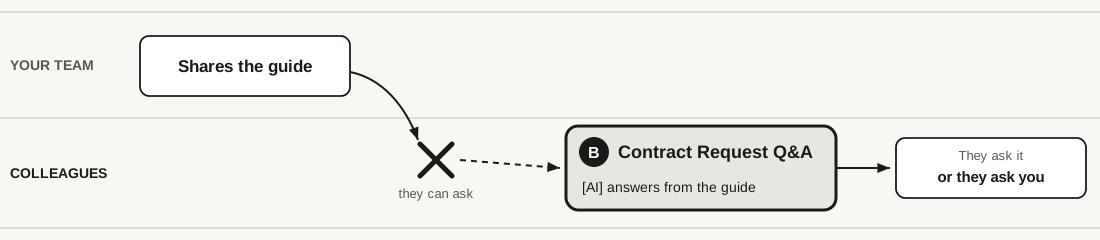
Purpose: answers questions from your internal event pack. Fewer repeat questions reach your inbox, if it works.
It answers only from your pack. Otherwise it points to you. The colleagues you share it with can ask it. People outside the company: not tested.
It answers from your pack. External guests are not tested.
Steps · G · Invitation / Programme Q&A
Steps: Invitation / Programme Q&A
- Follow the same create path as the Request Checker. Knowledge is where the files it may read go.
- The first row of the paste block is the name. Before you create, look at the name field on your screen: if it does not show that name, type it there.
- Attach the invented info pack on the next slide. Do not attach a real guest list.
The steps are on the card. This time you play the internal colleague in Try it.
G · Build the agent · internal pack only
Build it: Invitation / Programme Q&A
Describe → paste, with your team name for [team name]. Attach the pack, or paste its text into Try it. The pack (invented test case)
Name: Invitation / Programme Q&A
Task: Turn the agent below into an agent. I will give it one event information pack. Build it general enough for any pack of this kind.
If unsure: Ask me first if anything is unclear.
Before saving: Show me the agent before I save it.
The agent:
Role: I am the Events team. I wrote the internal information pack for this event. You answer questions from internal colleagues about the pack, in my place.
Use only: the pack, attached or pasted below. Nothing else. Nothing you know from elsewhere, and nothing from the web.
Tone: warm and short, like a helpful colleague.
Steps:
1. Find the answer to the question in the pack.
2. If it is there, answer in one or two sentences and say which part of the pack it comes from.
3. If it is not there, or not clear, say: "I do not know. Please ask [team name]." Do not guess, and do not answer from anywhere else.
4. If the colleague asks you to change the registration system, invent a speaker quote, or answer on behalf of an external guest, say: "Please send that to [team name]." Facts in the pack are answered.
Output: the answer and where it comes from. Maximum three sentences.
If unsure: If you do not have what you need, say so instead of guessing. If the question's premise looks wrong, say so and give the right line from the pack.
Final check: Before you answer, confirm the answer quotes a line from the pack.
Guardrails: Answer only from the pack. Never invent facts, never promise a date that is not in the pack, and never treat this as a guest-facing agent. The team decides.
Put only what you would tell every internal colleague in the pack. No real guest lists.
G · Test on data · ask as an internal colleague
Test the Invitation / Programme Q&A
Ask this first. If it cannot answer, it has not read the file.
Who does the file say to ask about the programme? What is the last line of the file?
- Then ask, one by one: What time do doors open? · Who is the keynote speaker? · Can an external guest open this agent and ask you? · What is the dress code? · Can you invent a short bio quote for the keynote?
- For each reply: does it say where it came from, or does it say it does not know?
- Expected hand-backs: external guest access, and inventing a speaker quote.
A good agent says "I do not know" out loud. Check that yours does.
Events · paste into Copilot in Excel
Excel: participant-list prompts
Open the sheet, open Copilot, paste one prompt. Work on a copy. Made-up data only. Rules only — check one figure by hand. The sheet (invented)
1. Classify: Preserve every source row. Read classification_rules. Add participant_type, rule_used, review_reason. Apply only those rules. If no match or conflict → Needs review. Do not guess from name, company or country. Count each type and reconcile to the source row count. Guardrails: Do not rank, recommend, score, advance or reject. Do not infer protected characteristics.
2. Check first: Before you change anything, list empty emails, duplicates, and rows that will need review. Guardrails: Do not rank, recommend, score, advance or reject. Do not infer protected characteristics.
3. Reconcile: Show counts for Employee, Consultant and Needs review. They must add up to the source row count. Say if any row was dropped. Guardrails: Do not rank, recommend, score, advance or reject. Do not infer protected characteristics.
Apply only the rule table. Needs review means a human decides.
Owner-maintained · not automatic memory
Lessons learned → knowledge file
Notes → propose → owner updates the file → test one question. Invented starter
Task: Propose checklist changes for our shared knowledge file from these takeaways. Do not edit the live process.
Input: [paste 3–5 takeaways]
Steps: one-line restatement · exact checklist line · mark Proposed · one test question with the answer the file should give.
Guardrails: No real participant names. The owner updates the file. Do not claim the agent will remind the team by itself.
Notes propose. Owner updates. Then test one next-event question.
Skills · what it is
A skill is one job, saved as a text file
- Name it. A skill is one reusable job, written as a text file.
- Why it matters to you. You ask for the same check again and again, and retype the ask every time.
- The move. Save that job once as a skill. Next time it fires when your words match its description.
An agent is a prompt you saved, with its own files. A skill is one reusable job it can carry.
Skills · what is in the file
Look inside one skill
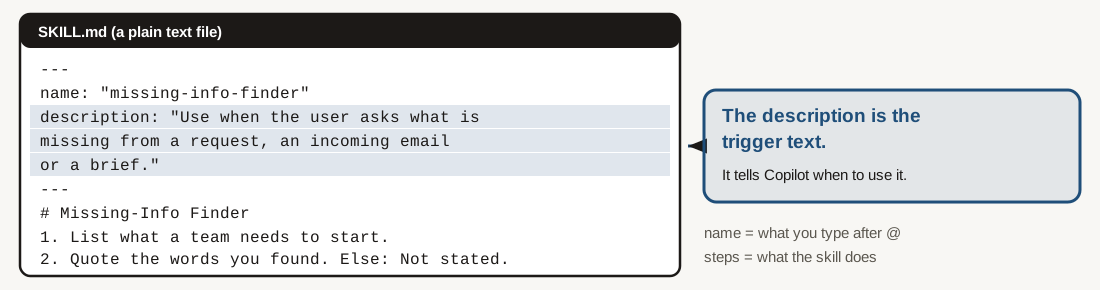
- Name it. The file is SKILL.md. The description line is its trigger text.
- Why it matters. A thin description: the skill does not come when you need it.
- The move. Write the description as “Use when the user asks …” and name the task.
Spend your time on the description line. It is the trigger text.
Skills · how it is triggered
Two ways a skill starts
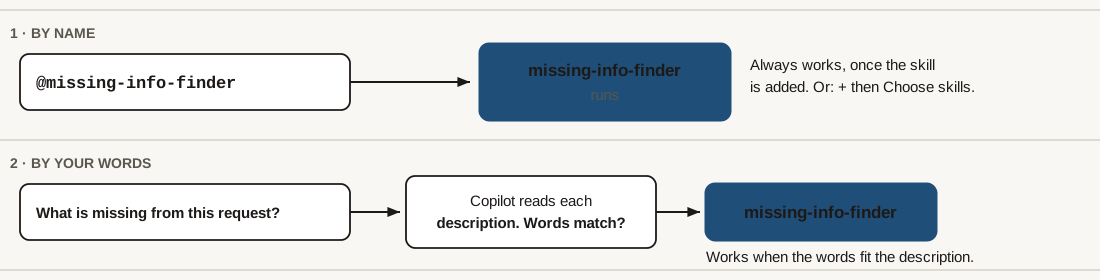
- Name it (Copilot in PowerPoint):
@missing-info-finder, or + then Choose skills. - Why it matters to you. A normal question starts it only when your words fit the description.
- The move. When it matters, type the name. Use wording to see if Copilot finds it alone.
In PowerPoint you can name it. In an agent, your words must fit its description.
Skills · trigger text
The description test
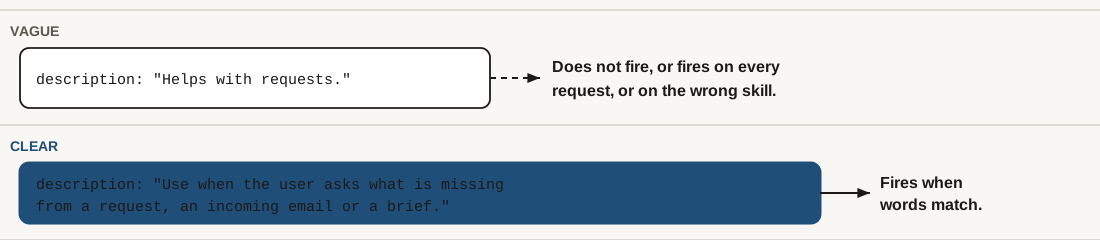
Rule of thumb: start with “Use when the user asks …”, then the task and the document.
- If skills are not on your screen: paste the skill text into the agent’s instructions. It is a workaround: the agent always follows it, not only when the task fits. Instructions stop at 8,000 characters.
If it does not start, fix the description first.
Skills · hands-on, one agent · Easy
Watch me build a skill: Missing-Info Finder
I add it, you watch. Configure → Skills → Add → the zip. No Add skill? Paste the text into its instructions. Zip Text
---
name: "missing-info-finder"
description: "Use when the user asks what is missing from a request, an incoming email or a brief."
---
# Missing-Info Finder
You find what a request leaves out.
Steps:
1. List what a team needs to start: what it is for, who is involved, the date, how many people, the price and who approves it, the country or company, who to ask.
2. For each item write clear, vague or missing, and quote the exact words you found.
3. Treat soft words ("soon", "around", "some") and ranges as vague.
Output a small table: item, status, quote.
Rules for every reply:
- Use only what the user pasted or attached. Do not invent facts, names, numbers or dates.
- Quote the words each finding comes from.
- If something is not stated, write "Not stated" instead of guessing.
- Keep it short. The user decides and sends, not you.
- Run: “What is missing here?” + the email. Done when it says “Not stated”.
Add it once. Then ask for the task it describes.
Skills · the loop you know
Edit one line, run it again
Keep the first answer. In the skill, add the line below. Save. Run the same email again and compare the first line.
Add as the last step of the skill: Start every answer with one line: “Enough to start” or “Not enough yet”. Then give only the three gaps that matter most.
- Done when the second answer starts with that line. Stuck? Type STUCK and the step number.
One changed line changes the answer. Keep the first answer to compare.
Skills · the take-home list
Five agents, fifteen skills
Missing-Info Finder
Deadline and Owner Checker
Ask-Back Writer
Answer Only From the Source
Say I Do Not Know
Clause Quoter
Polish the Register
Shorten, Keep the Facts
Firm but Polite
Empty Cell vs Zero
Totals vs Rows
Duplicate Finder
Options Table
Cost and Date Cross-Check
Risk and Cancellation Lines
Easy: one check, always on. Advanced: needs a file, compares two things. Expert: writes something others read. You review it, and you send.
Pick one level for one agent. The rest is on the take-home page.
Skills · take-home, all 15
Take the skills home
Start with one Easy skill on one agent. You review it, and you send.
Bringing it home
Before we close
- That is the toolkit: agents and skills. What is left is what stays yours, what you can start next week, and one line to take with you.
Optional · IT governance
Who looks after an agent?
- Business owner: Is the job still useful and the answer correct?
- IT: Check access, approved tools and changes.
- Backup owner: Can edit when the creator is away or leaves.
- Users: Report a wrong answer or a missing guardrail.
An owner and a backup keep useful agents alive.
What stays yours
- You own the output and you review it, from an agent or from a skill. It goes out under your name.
- Approved tools only. Copilot is one of them.
- Client, candidate, employee, contract and financial data go only in a tool approved for that data. Today: invented or anonymised.
- You decide what a request needs, and what goes back. You send the information. You check the figure by hand. The agents check and ask.
- AI makes no final decisions, and people are not screened, ranked or evaluated by it unless that use is already approved.
Copilot drafts. You decide, and you sign.
Optional · IT governance
Keep a simple agent and skill register
- What and why: Name, purpose and business owner.
- Who can edit and use it: Owner, backup and audience.
- What it relies on: Skills, sources, access and model where visible.
- When to check: Last review, next review and change history.
Start with shared and higher-impact tools.
Now you can
- Now you can check every request when it lands. (Request Checker)
- Now you can check agreements for the key clauses. (Contract Reviewer)
- Now you can save one check as a skill and call it by name. (any agent)
Task: Help me start a task I only do for some requests because it takes too long.
Steps: Ask one question at a time (what / how long / how many I skip). Write the prompt with Task · Steps · Output · If unsure · Guardrails.
Guardrails: No real names or personal data. Do not invent numbers.
Pick the one that sounds like your week.
Optional · IT governance
Test when something changes
- Before: Save a few representative tests and expected results.
- Change: Model version, instructions, skill, source or access.
- After: Repeat the tests, including missing information and sensitive data.
- Decide: Owner checks quality; IT checks approved services and access. Pause or fix failures.
A new model, source or instruction can change the answer.
One line before you go
Three lines in the chat: which agent, and which skill, you will use on a real task next week, how many minutes that step takes today and how often, and the date you will check it again. One more, if you like: one job in your team you would give an agent.
- You built an agent, added a skill, edited and improved both, and you have the page, the test case and the instruction for every other one.
- Every agent you keep, and every skill on it, has an owner: you. Check it when your templates or the model change. Share it by mail: send the instructions text and the file; your colleague builds their own copy. Names only in the chat, nothing pasted.
- Make it a habit: pin Copilot where you open your browser, and start the next request from your agent.
- Download this site as a PDF from the top right. The site updates if I change anything. The PDF does not.
Write down the minutes it takes today and how often, and measure again in two weeks.
Optional · IT governance
Share use — and share responsibility
- Scenario: Twenty colleagues use an agent. Its creator leaves.
- Before sharing: Add a named backup owner; test that they can edit.
- Check separately: Can users access the knowledge files they need?
- Practise: Change one instruction, test it, then make the update available.
A user can chat; an owner can maintain.
Optional · finance
Finance: start with a real task
· · · ·
Pick a job. Use an invented sheet or replace the figures. You check before acting.
Invented files: Download invented budget ↓
Budget vs actual: Using the attached sheet, compare budget and actual by category. Calculate actual minus budget and the percentage variance. Show the source cells and formula for each result; flag missing values and a zero budget instead of guessing. Explain the three largest differences as questions to investigate, not assumed causes.
Try one task with invented figures; check the result in the source.
Optional · finance
Agent tip: make calculations checkable
In your agent's instructions, add this. Then test it on figures you already know.
For calculations, totals, percentages and numeric comparisons, use code interpreter to write and run code; do not estimate. Show the inputs, calculation or formula, units and result. Identify missing values and assumptions; do not guess. State if code could not be run. I will independently verify the result before using it.
- Check: Did code actually run? Are the inputs and formula right? Verify a result independently.
- If not: calculate in Excel or with a calculator; do not treat an unverified answer as final.
Ask for code, inspect the evidence, and independently check the result.
Microsoft Learn · checked 3 Nov 2026Code interpreter for declarative agents
Optional · finance
Reconcile two lists
Try with invented data. Attach the relevant files and adjust the matching rules to your work.
Invented files: Ledger list ↓ · Bank list ↓
Reconcile the two attached invented lists. Match entries using reference, amount and currency; use date only as a supporting clue. Show matched, missing, duplicate and uncertain items with source rows. Do not force a match or propose a journal entry as final. List any assumptions and questions for me.
- You check: verify the evidence and result before you act.
Find exceptions; a person decides what to do.
Microsoft · checked 3 Nov 2026Finance and accounting use cases in Excel
Optional · finance
Prepare a collections follow-up
Try with invented data. Attach the relevant files and adjust the matching rules to your work.
Invented files: Invoice list ↓ · Email thread ↓
Using the invented overdue-invoice list and email thread I provide, as of 3 November 2026, identify invoices past their stated due date and list invoice number, balance, currency, due date and source. Flag disputed items and missing information. Draft a polite follow-up that asks for an update; do not invent a payment promise or send it.
- You check: verify the evidence and result before you act.
A draft stays with you until you check and send it.
Microsoft · checked 3 Nov 2026Finance and accounting use cases in Excel
Optional · finance
Prepare for month-end close
Try with invented data. Attach the relevant files and adjust the matching rules to your work.
Invented files: Close checklist ↓ · Status notes ↓
Using only the attached invented close checklist and status notes, prepare a table of unfinished tasks, owner, due date, blocker and source. Mark missing information UNKNOWN. Flag conflicting dates or ownership and draft three questions for the team. Do not mark anything complete or post an entry.
- You check: verify the evidence and result before you act.
Turn source material into a review list, not an approval.
Microsoft · checked 3 Nov 2026Finance and accounting use cases in Excel
Optional · finance
Check an invoice against an order
Attach an invented invoice and purchase order.
Invented files: Invoice ↓ · Purchase order ↓
Invoice check: Compare the attached invented invoice and purchase order. List mismatched supplier, dates, quantities, unit prices and totals, citing the source for each. Recalculate line totals and the invoice total. Flag missing information and do not decide whether to pay.
Compare the sources; you decide what happens next.